
Parent & Student Guide
Simple step-by-step help for families using the IV Preschool School Portal. This page does not show private student records.
About IV Preschool
IV Preschool is a project of OPVG International School. It provides online preschool learning for young children.
Families use the School Portal for admission, timetable, live classes, attendance, homework, fees, results, certificates, notices, and support. Live classes use Zoom. Evening classes are planned so young learners can join from home with a parent or guardian nearby when needed.
Getting started
Create your account, add your child, then wait for school approval.
Open the Portal
Go to portal.ivpreschool.com in a browser, or use the IV Preschool mobile app when it is available.
Sign up as a parent or guardian
Create an account with email, password, and the family details requested. Agree to Terms and Privacy before continuing.
Verify your email
Enter the 4-digit code emailed to you. Check spam if it is delayed, then continue.
Add your first child
Complete the admission form (photo, names, and any document details the school asks for). Until approval, access stays limited to admission steps.
School approval
School staff review new family applications. After approval, normal parent features unlock for your linked children.
Add another child
From Select Child, use Add New Child (an email code may be required) and submit for school review.
Sign in later
Use your email and password on the Login screen. Profile settings include appearance, optional app lock, children list, Support, and Terms and Privacy.
Study area, camera, and parental controls
Prepare a calm place before live class. These illustrations are tips for the home study space.
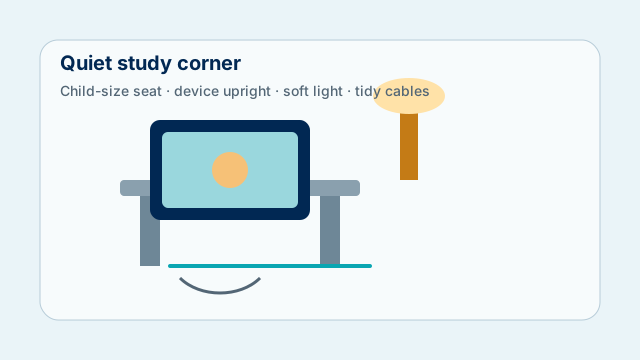
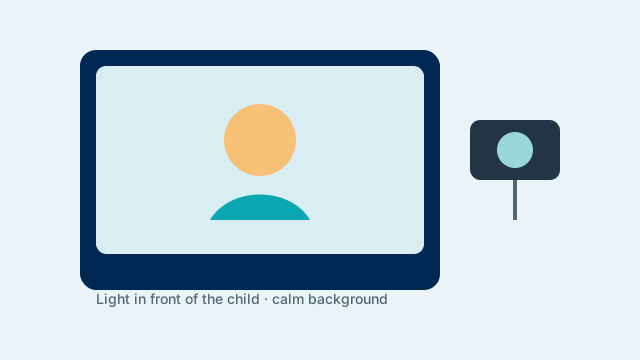
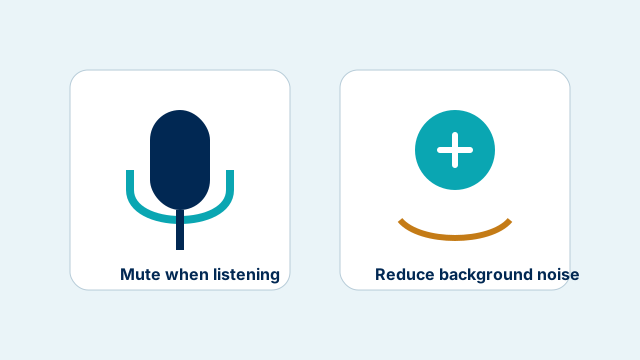
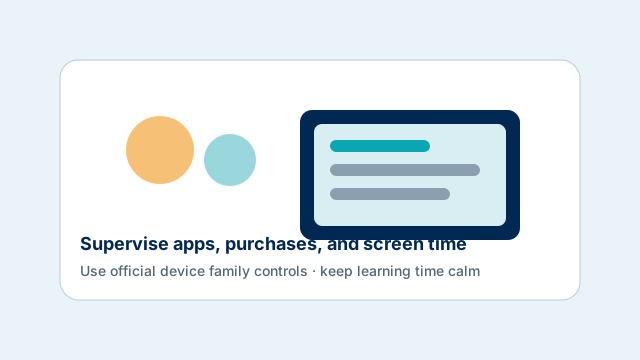
Official device controls (menus can change—open the current vendor help):
Joining live Zoom classes
Open Timetable, then tap Join when it appears shortly before class.
 Timetable
Open Timetable or Today’s Classes
From the Parent Dashboard quick actions or today’s class list.
Find the correct class
Check the subject and time for the selected child.
Tap Join when it appears
Join usually becomes available a few minutes before class starts and closes when the class ends.
Use Zoom details
Open the Zoom link, or copy the Zoom ID and password into Zoom.
Camera, mic, speaker
In Zoom, turn camera on or off, mute or unmute, and choose the correct speaker. Leave Zoom when class ends.
Student attendance
 Attendance
- Who marks attendance: teachers or staff in Student Attendance.
- How parents view it: Parent Dashboard → Attendance for the selected child.
- Statuses you may see: Present and Absent. Staff may also record Late, Leave, or Half Leave.
- Holidays: follow the school calendar and notices. Contact Support or use Leave Requests for absence concerns.
Homework and Classwork
 Homework
Submit work in the Portal using the steps below.
Open Homework or Class Work
From Parent Dashboard quick actions or due cards.
Read instructions
Open the assignment and read the teacher instructions (and Drive link if provided).
Complete the work
Finish workbook or activities offline as instructed.
Submit in the Portal
Use camera, gallery, or PDF upload, then Review and Submit.
Track status
Look for Action Needed, Pending, Submitted, Under Review, or Rejected. Teachers may Approve or Reject for resubmission. Open View Checked Work when available.
Fees and payment proof
 Fees
Check Fee and Payments
Open the fee reminder or Fees from quick actions.
Review dues
View pending amounts shown for your family or child.
Follow school payment instructions
Pay using the method the school provides.
Upload payment proof
Use Pay Now or Upload Payment Proof, submit for review, then watch the verification status.
History and receipts
Open Payment History or Official Receipts when those screens show available documents.
Exams and certificates
 Exams
 Results
- Exams / Datesheet: Parent Dashboard → Exams → View Datesheet or Exam Syllabus when published.
- Results: open Results to view published result cards. Delivery can depend on school publication and any fee holds.
- Certificates: Certificates → Request Certificate for types such as Bonafide or Leaving Certificate, then view issued certificates when ready.
Support and FAQ
 Support
Where do I ask for help?
Signed-in: Profile → Support Tickets, or Support from the dashboard. Public: Support page.
Why is my account still limited?
New family applications wait for school approval. Complete photo and first-child steps, then wait for Admin review.
Join is missing
Confirm the class time, selected child, and that Zoom details were set by the teacher. Contact Support if details stay empty during class time.
Privacy and account deletion
See Privacy Policy and Account Deletion.